Fit vs Fill for Product Photos
Compare downloadable square exports from one portrait photo, then choose whether to preserve the source edges or fill the frame.
Choose the detail to protect
Choose Fit when the entire photograph must remain visible. The empty part of the output receives a background color. Choose Fill when covering the whole output is more important than retaining the source edges. Inspect exactly what is removed before accepting it.
A photograph and the product inside it have different boundaries. Fit preserves the source rectangle, including any empty background already in that rectangle. It does not find a cup handle, remove a background or equalize the apparent sizes of different products.
One photo, two square exports
The downloadable source is 759 × 1000. Both outputs are 800 × 800, centered, at zero margin. These files use the site's framing calculations and a reference encoder.
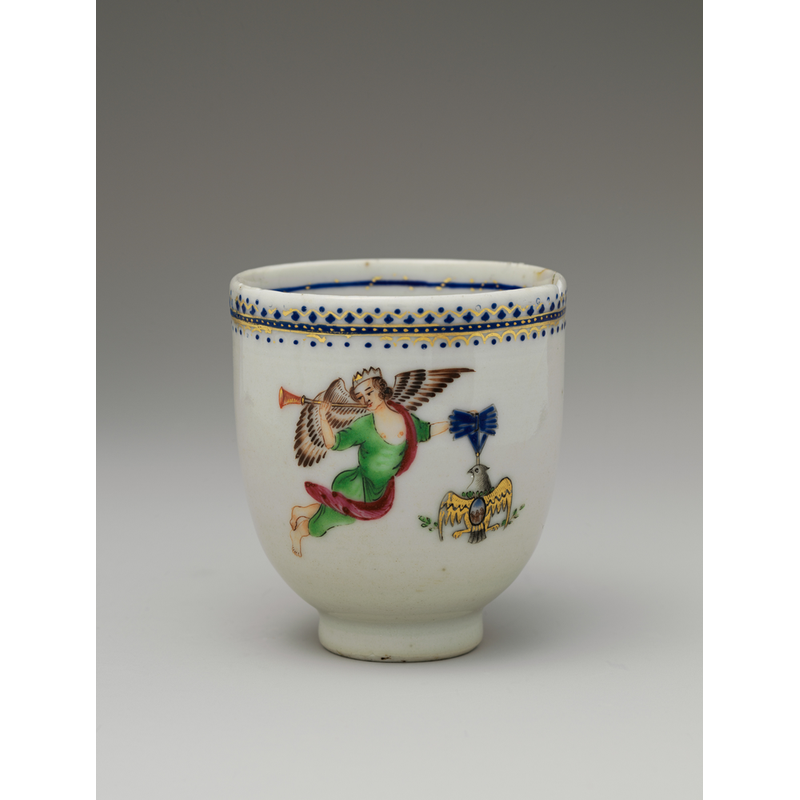
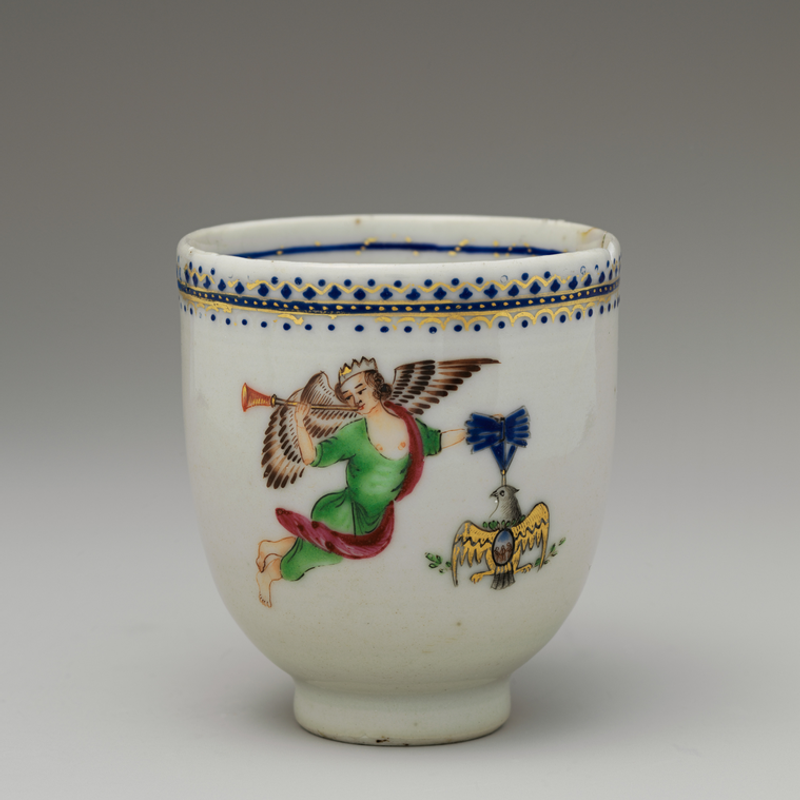
Fit scales the source to about 607 × 800. Fill scales it to about 800 × 1054 before removing about 127 output pixels from each vertical edge. Pixel rounding and interpolation can differ in a browser. Download the portrait source.
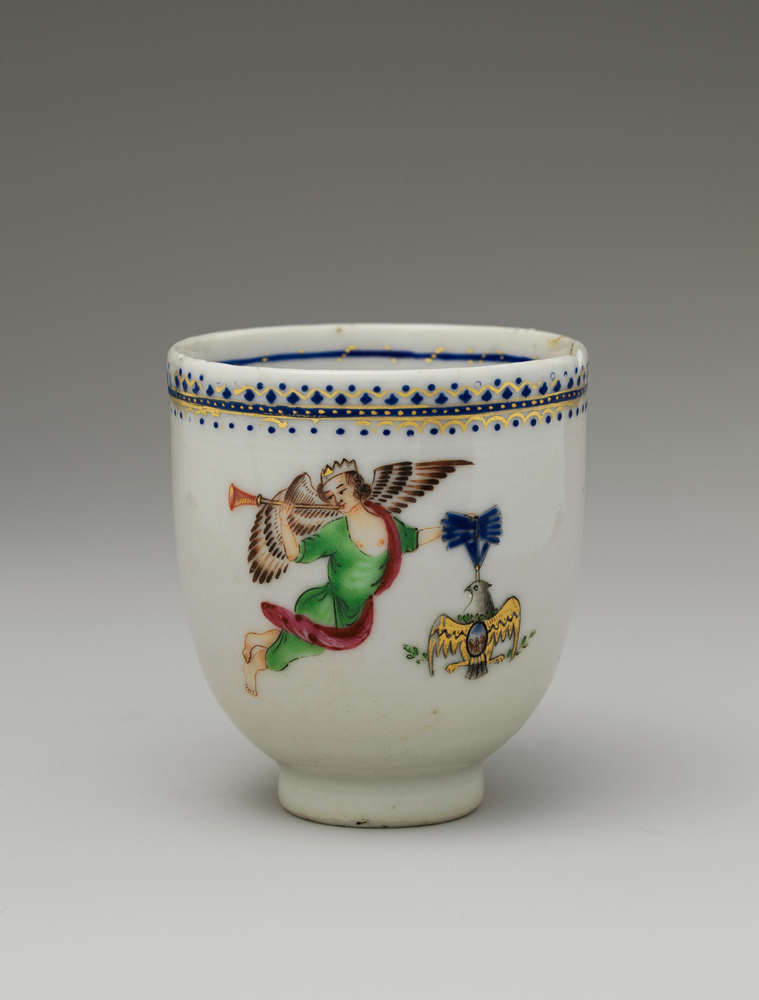
Image sources and reproduction
Photographs: Coffee Cup, The Metropolitan Museum of Art; Coffee cup and coffee bean, mcfoodie. Both are CC0. They are third-party test material, not photographs taken by this project. Pattern, text, transparency and noise fixtures are generated tests.


Measured 2026-10-20 with sharp 0.35.4, libvips 8.18.6, Node 24.13.1. Download all dimensions, byte counts and SHA-256 hashes. Reproduction script.
Read the worked example
The source photograph below is portrait-shaped. Fitting it to a square preserves its top and bottom and introduces white side margins. Filling the square removes some of the background above and below the cup. In this particular composition, the cropped area is mostly background; a taller product in the same source frame could lose an important detail.
The exported pixels, rather than the names of the settings, settle the comparison. Download both square results and open them at the same display size. Compare the cup rim, base, painted decoration and surrounding background. Changing the composition can change which mode is appropriate.
Repeat in any image editor
Use an editor with a canvas or crop control. Keep a copy of the original. A resize control alone may only change dimensions while preserving the original ratio; it may not create a square canvas at all.
- Set the destination canvas, for example 800 × 800 pixels, and preserve the source proportions.
- For Fit, scale until the entire source fits inside the canvas and choose the background deliberately.
- For Fill, scale until the canvas is covered, then position the crop around the details that must survive.
- Export each variation separately from the original. Open the saved files and compare them side by side.
- Inspect the final marketplace draft as well, because the destination can apply another crop.
When neither mode works
If Fit makes the product too small, inspect the empty space in the original before increasing the output resolution. A tighter source composition can help more than a larger canvas. If Fill removes a handle, accessory or quantity-defining piece, reposition the crop or retain the complete frame.
When a small source is enlarged, extra pixels do not restore a blurred label. Image Prep leaves enlargement off by default. Its margin applies to Fit, and Fill uses the chosen crop position. The reference example enables enlargement so both modes can cover the requested square; match that choice when reproducing it.
How this guide was made
Written from the documented sources and downloadable examples on this page. Reference-encoder results explain the file decisions; the final browser output and destination preview still need checking.
Reference: MDN: drawImage scaling and source/destination rectangles